We show everything as it is, bugs included. Entries appear as we verify the facts.
Modpacks
Modpack builder in the Library
You can now build your own modpack right in the app. The Library has a new “Modpack builder” item: pick a game version and loader, then add mods, shaders, resource packs and data packs — with pictures and descriptions.
Only items that fit the chosen version are shown. Required libraries are added automatically, conflicts are checked up front, and you can optionally add a proven speed-up set — Sodium, Lithium, FerriteCore and more.
The “Ready-made packs” tab has starting points: BlockFlow Cozy and themed sets. Take one as a base and tweak it in one click. You can copy your list and send it to a friend.
We also closed several server-side security checks. Installing a pack from a file is off by default and can be enabled in Settings.
Library
Play: on the PC, on a tablet or in the cloud
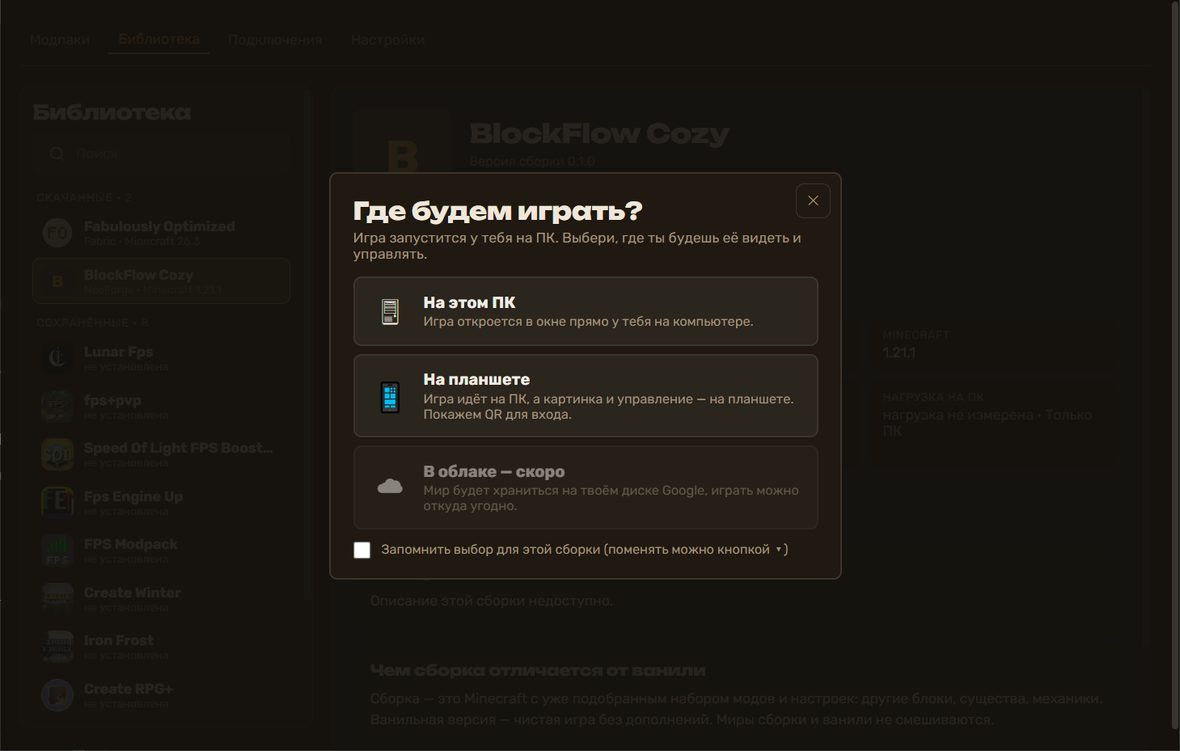
Before, “Play” simply started the game on your computer. Now it opens a “Where shall we play?” window with three choices.
On this PC — the game opens in a window on your computer. On a tablet — the game runs on the PC while the picture and controls come to your tablet, and we show a QR code to join. In the cloud — coming soon: your world will live on your Google drive so you can play the same world from anywhere.
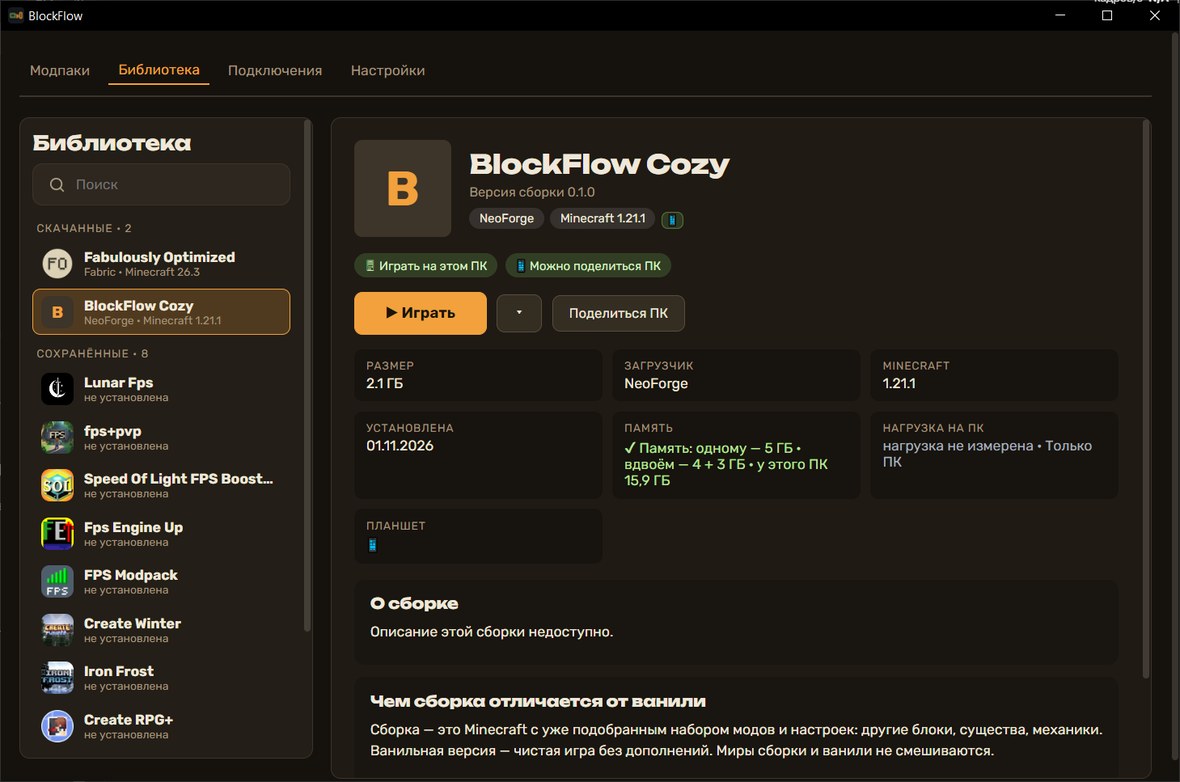
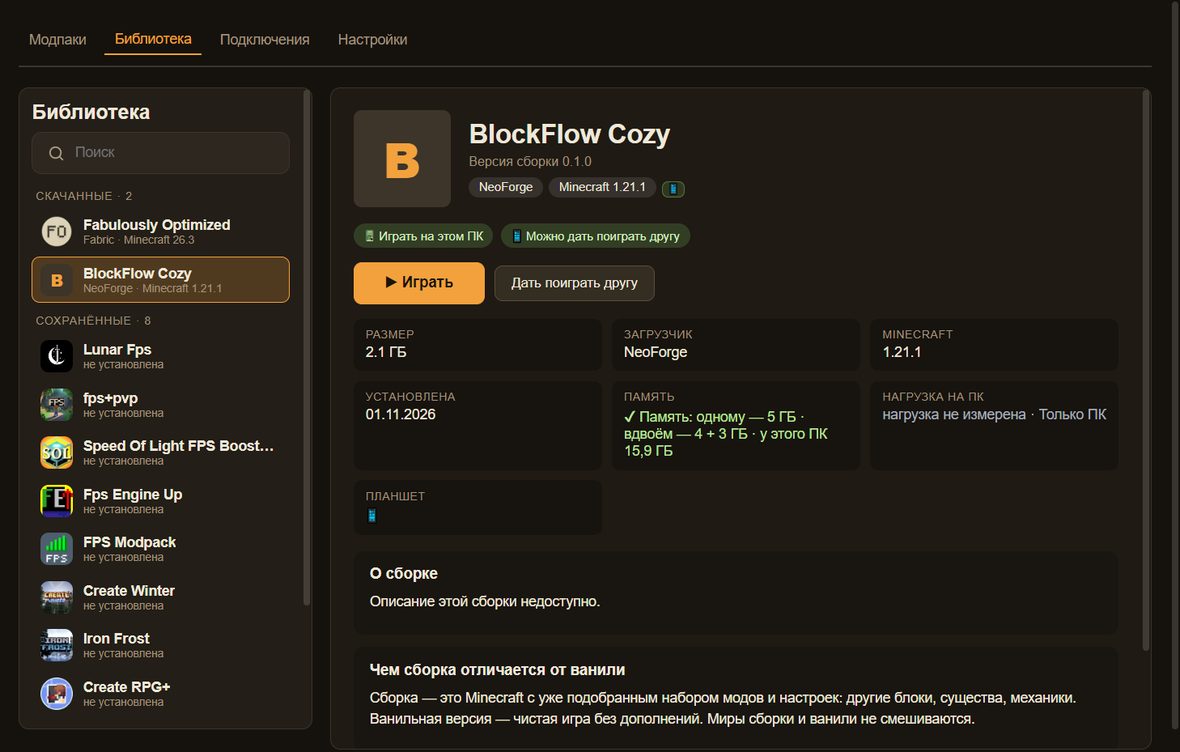
You can remember the choice for a modpack — then “Play” starts right away, and the arrow button next to it changes the way. “Share PC” stays beside it: one step and your friend joins by QR with their own character.
A modpack page: “Play”, the choice arrow and “Share PC”After “Play” — the “Where shall we play?” window
Controls
Aim, Shield and the right mouse button
In Minecraft on a PC, aiming, blocking with a shield and “use item” are all the same right mouse button. On a tablet, holding it with one finger while aiming with another is awkward.
So we split it up, like in shooters: a separate “Aim” button (tap once to aim, tap again to release) and a separate “Shield” button (hold it while you need to block).
Tip: “Shield” is the right button, so with an item in your hand it also works as “use”.
Controls
Chat with an on-screen keyboard
Tap to open the chat and a keyboard appears at the bottom: type with your fingers, send, and close with the pause button. Checked on a tablet in a real world.
Controls
Inventory and recipes with one finger
Items are picked up and placed with a simple tap. The recipe list is on the right; for the selected item there are “Recipe” and “Uses” buttons. Checked on a tablet in a pack with about a hundred mods.
Reliability
A friend’s game starts more reliably
We run friend-game launches in series back to back to catch rare failures: in the latest series all five launches went through, each taking about two minutes.
Still checking: that no extra windows are left after a friend's game closes and the tablet never shows an empty screen.
Polish
Removed a stray white dot
In menus and the inventory a white dot was drawn where the last tap landed. It only got in the way — it is gone now.
Polish
A quiet start with no black windows
BlockFlow starts without flashing console windows — just the app itself.
Modpacks
The Modrinth catalog inside the app
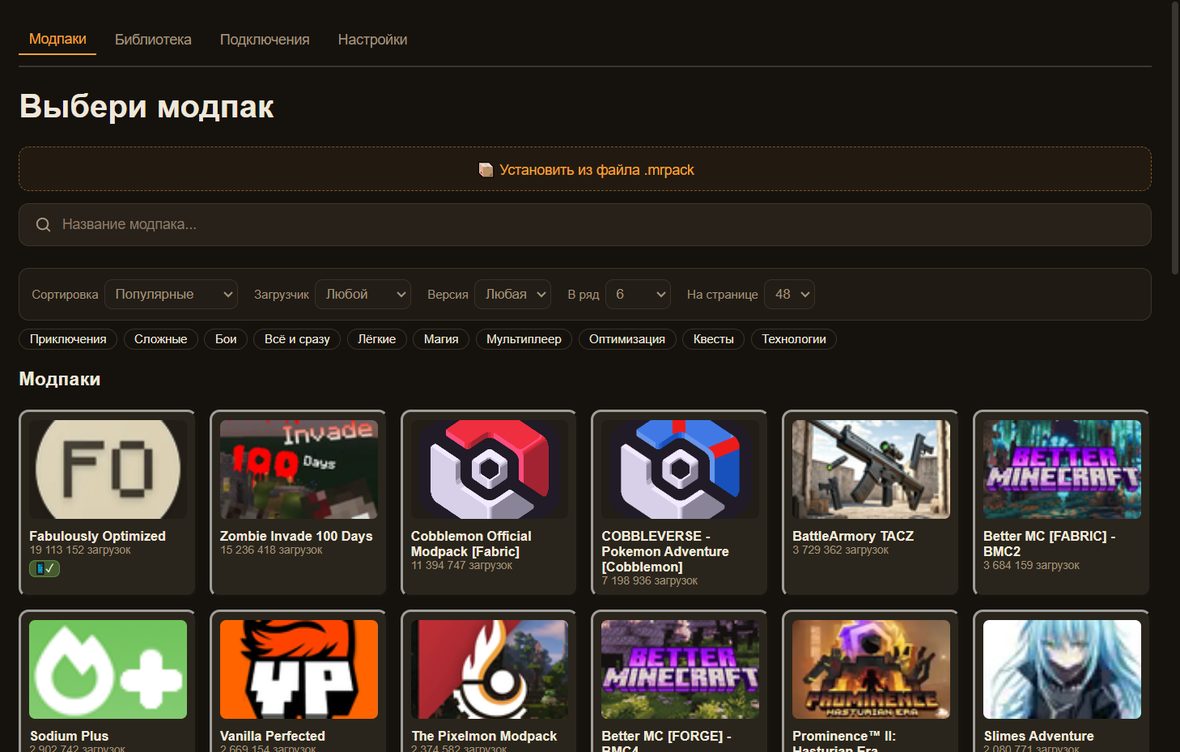
Search by name, filters for loader, version and category, sorting, and an adjustable number of cards per row (or “Auto” to fit the window). You can install your own pack from an .mrpack file. The app picks Java and the loader for you.
Modpacks: a full-width catalog, search, filters, “Per row” and “Auto”
Modpacks
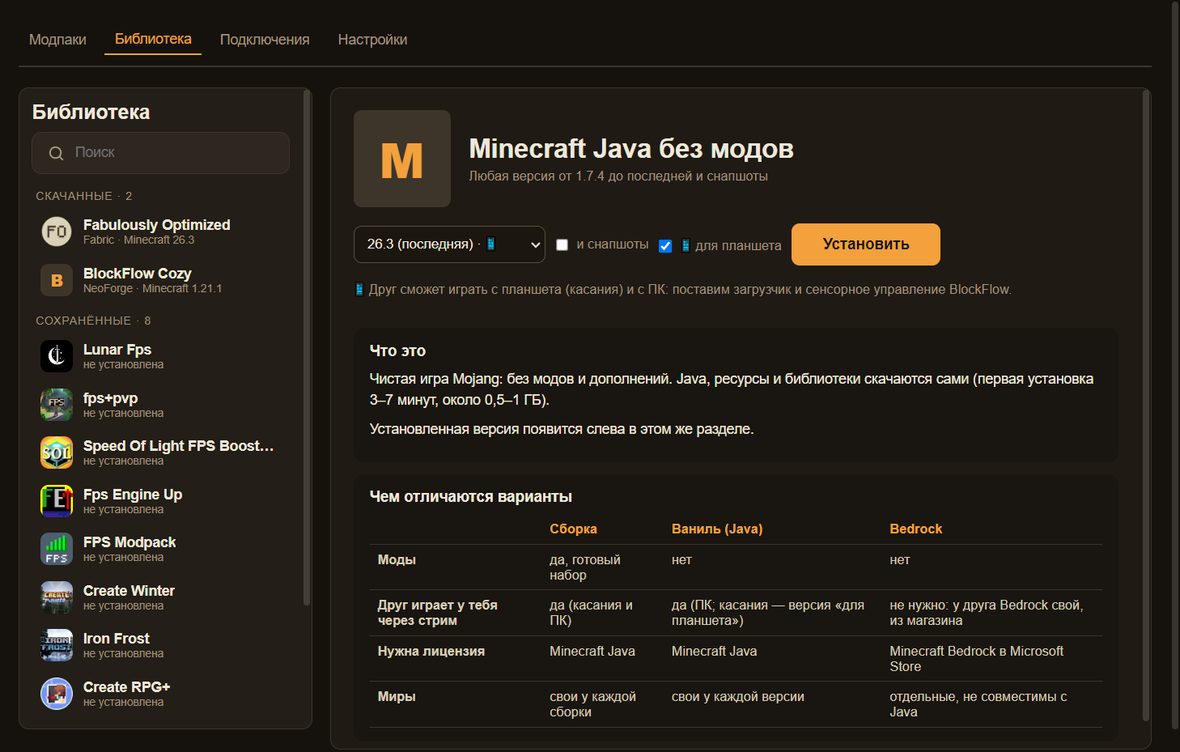
Plain Minecraft of any version — in two clicks
Any Minecraft Java version as plain vanilla in two clicks. A friend on a tablet? There is a “for tablet” option with BlockFlow touch controls.
Bedrock launches on the PC right from the library. We do not stream it to friends: everyone needs their own Bedrock.
Plain Minecraft of any version — in two clicks
Library
Library: list on the left, modpack page on the right
Downloaded, Saved, and Vanilla & Bedrock on the left, the selected page on the right. “Play” shows when the game is already running. A new modpack version shows a bar and installs alongside, worlds stay untouched. Backup history and delete are at the bottom of the page.
Library: list on the left, modpack page on the right
Playing together
“Share PC” and the Connections tab
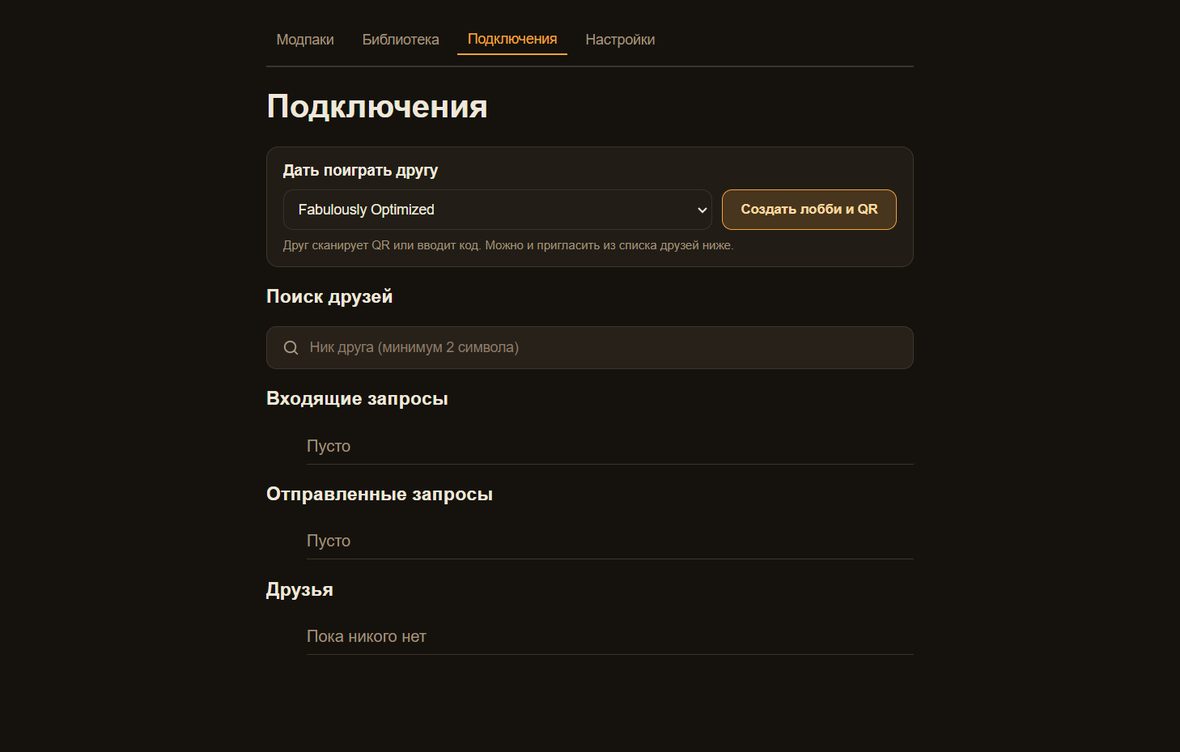
The button builds a QR and a code in the Connections tab: lobby, friend search by nickname, requests, invites. A friend’s game can be stopped at any moment, even while it is loading.
Connections: lobby, QR, code and friends in one place
Library
Cancel launch and close the game
Pressed “Play” by accident? While the game starts you get “Cancel launch”, and while it runs — “Close game”.
Library
Works without internet
The library opens instantly from the saved list. With no connection it shows saved descriptions and an “Offline” mark, and icons fall back to a letter.
Polish
One style and less clutter
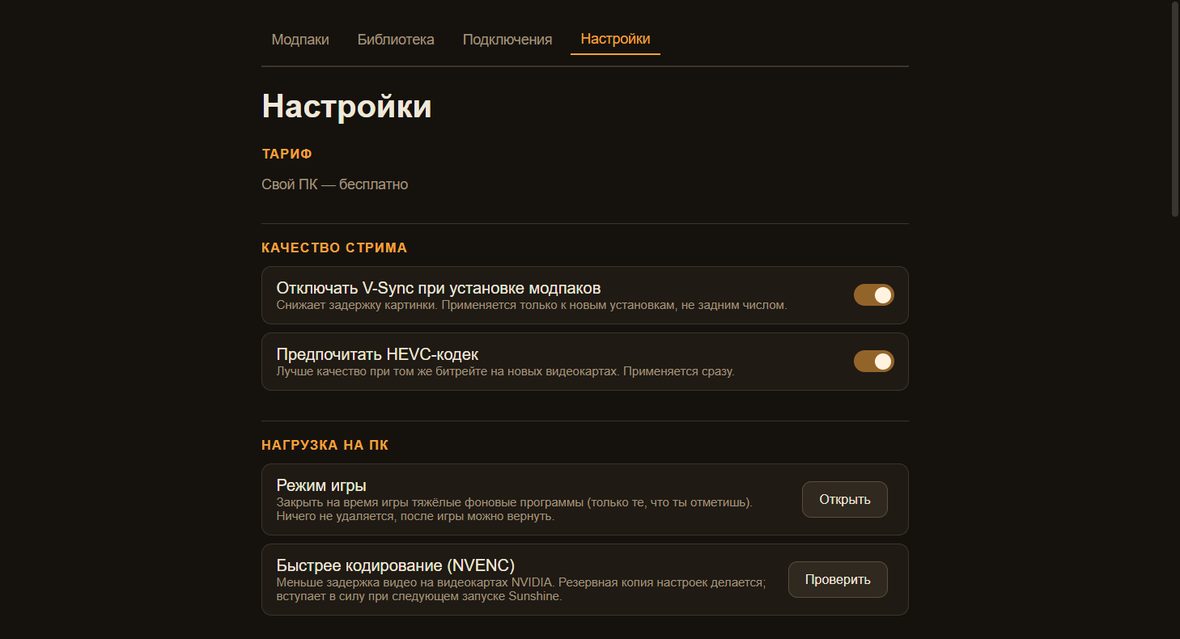
The extra grey menu strip at the top of the window is gone, everything useful moved to Settings → “Advanced”. One dark style for fields and buttons, and “Log out” sits at the bottom of settings so it is not pressed by accident.
Settings in the same style as the app
Intro
We are building BlockFlow
We are building BlockFlow — an app for playing modded Minecraft together even if your friend has no powerful PC.
The host’s PC runs the game and your friend plays from a tablet or phone right in the browser. This is an open devlog: everything as it is, bugs included.
Joining
A friend joins by QR code
Getting a friend into a modpack used to mean installing Java, a loader and dozens of mods.
Now the host shows a QR code, the friend points a camera — and they are in. Nothing to install.
Controls
Joystick and buttons work independently
Joystick, attack and jump buttons like Bedrock — but in modded Java.
We fixed a bug where pressing a button nudged the joystick. They are now independent, and a multitouch test covers it.
Honest bugs
What we just fixed — and what we are still checking
Fixed in code: JEI search takes text from the on-screen keyboard; the inventory shows a cursor; Esc on the tablet no longer drops fullscreen; the friend’s game no longer hides the host’s mouse. Recipe and uses are now switched with buttons in the inventory.
We have not yet run this live on a tablet, so we call it “fixed in code”, not “working”. We will post the result here.
Website
The website in four languages, and contacts
The website is now available in Russian, English, Czech and German: the language switch is in the menu. All pages are translated, including “Help”.
The footer and the “About” page now show contacts: the e-mail address is visible on screen and can be copied with one button (a “mailto” link does not always work on a phone without a mail app). Two addresses are listed.
Fixed in the app code: auto-jump is now on in the friend’s game. We are still checking how it behaves live.